
eTrack can be configured to automatically export the results of a custom report to an Excel file after running and open another Excel file that can be set up to read the report results and display variations of the eTrack data with graphs and pivot tables.
- Create a custom report with the raw data needed for the pivot table or chart.
- In the Permissions tab of the Report tick the two checkboxes: ‘Auto export results and launch excel’ and ‘Run immediately using default selection criteria’.
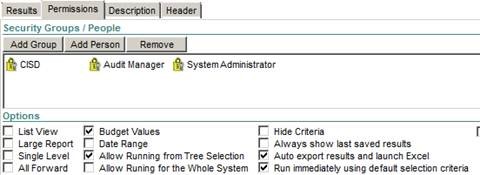
3. Run the report which will create a file called <custom report name>-data.xls (eTrack will then error as can’t find the –pivot file yet).
4. Create another spreadsheet with two or more worksheets:
5. a) The first worksheet links back to the cells in the <custom report name>-data.xls file.
– select cell A1 (or A2 if header row for example)
– Alt tab to view the data spreadsheet
– select the cell that A1 corresponds to and press enter;
– Excel will create ='[<custom report name>-data.xls]Sheet4′!$A$1
– **Remove the $ signs: eg A1 not $A$1
– Copy this to rows and cols covering the whole data (say up to 1000 rows)
NOTE. If you have Excel set up to create 3 worksheets by default then you need to reference Sheet4, if have changed the default to say create one then you need to reference Sheet2, have a look at the –data.xls file and you’ll see.
b) The second and other worksheets are pivot tables and charts that refer back to the first worksheet that you can create.
6. Put the <custom report name>–pivot.xls file in the same folder as the eTrack.exe (there is also a report path that can be set up in etrackconsole.exe but get it working in the same folder as the etrack.exe to start with).
- Run the report.
- When running the report, if prompted to overwrite the < custom report name>-data.xls file say YES.
- The < custom report name>-pivot/.xls will be automatically displayed.
Important Note: On some computers depending on the setup of your Excel, if the report is re-run the <custom report name> -data.xls file must be manually opened for the results in the <custom report name>-pivot.xls file to be updated (otherwise they will be the results of the previous run).
Posted in: eTrack FAQ, Other, Reports