
When on the road and to multi-task at your desk, the eTrack App provides a fast and easy way to use eTrack on a smartphone or ipad. Use it to view and edit participant details including plans and goals, view and edit provider and personal contacts details, view and create case notes (that you can dictate), add a signature to a case note, book time, set timers to record time, and manage tasks.
Scroll to the end to learn how to access the eTrack App.
Menu
Tap the 3 bars icon top left to slide out the menu which has these options (depending on your access).
- Participants / Working On
- Tasks
- Timers
- Contacts
- Calendar
- Settings
Participants / Working On
To access a participant, tap the status then tap the participant. Or use the search (magnifying glass icon) or filter (edit box) to find the participant you are looking for.
You can view and edit personal details.
Tap Case Notes, Plans or Goals to view and edit those things.
What a user can view and edit depends on their security. For instance, users with “Support Worker” security can only see Participants they are assigned to via a lookup, Contacts table or Task. Some users may only have permission to view information (no editing) or to view their own case notes but not those created by other staff.
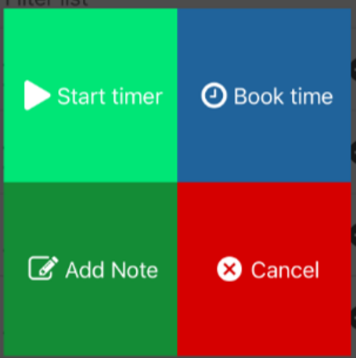
From the participant list, tap the 3 dots icon next to the participant name, for quick access to these functions (these are detailed below):
- Start Timer
- Book Time
- Add Case Note
Tasks
These are tasks assigned to you as shown on My Tasks tab in hosted eTrack.
Use the filters to filter by Date (Due, Future or All), Types and Statuses.
Tap a task to view details, change the status, enter a description and mark as done. Selecting the ‘Done’ status will automatically toggle the Done checkbox.
Timers
- From the participant list, tap the 3 dots icon next to the Participant name and select Start Timer. A red box will appear in place of the 3 dots and the timer will display at the bottom of the screen.
- Tap the red box next to the participant’s name or at the bottom for options: Book Now, Book Later, Pause, Discard or Continue.
- Select Timers from the menu to view Active and Stopped timers. The Booked tab shows all hours booked (even if a timer wasn’t used).
- Tap an active timer to Book Now, Book Later, Pause, Discard or Continue.
- Tap a stopped timer to Book Now, Discard or Book Later.
- Book Now displays the Book Time page.
- Book Later will stop the timer if its currently active.
Contacts
To access a contact, tap through the levels eg Providers > Podiatrists then tap the company / person. Or use the search (magnifying glass icon) / filter (edit box) to find the contact you are looking for.
Calendar
View and update your upcoming appointments.
Settings
Here you can Update Password, see what the App Version is, read About eTrack, Get in Touch with eTrack via email and Sign Out.
Book Time
There are various ways to book time:
- Using a timer as described above.
- From the participant list, tap the 3 dots icon next to the Participant name and select Book Time.
- Tap the clock icon on an existing case note.
- When saving a case note, you will be prompted to book time.
- Tap the clock icon when editing a Task.
Case Notes
- From a participant, tap Case Notes. Existing notes are listed with the newest at the top. Tap a note to view or edit. Click + (plus) icon top right to create a new note.
- Click the Copy icon to copy the note text to your clipboard ready to paste as required eg into a new note.
- From the participant list, tap the 3 dots icon next to the Participant name and select Add Note.
- When creating a note, optionally Select a Template if any exist (case note templates can be created in hosted eTrack by a user with access to Setup in the Navigation tree).
- To save your edits tap the green tick (top right) or Save button at the bottom.
More Features and App Tips
- Auto dial by pressing a phone number for 2 seconds.
- Auto email by pressing on an email address for 2 seconds.
- Dictate case notes using the microphone on your phone.
- Use the App to multi-task at your desk. Tap a number to make a call, start a timer to track the time, add a case note and book time, all while not interrupting what you are doing on your computer.
- View a Participants Goals before visiting.
- Use Settings/Notifications on your phone to tailor how you want to be notified.
- For better security, if you have been issued a new password from your Administrator, change it immediately by tapping the cog icon bottom right its known only to you. Changing your password in the App will also change it in hosted eTrack.
How to Access the eTrack App
- To install the app: Visit the iphone App Store or Android Play Store, search for ‘etrack ndis’ and look for the eTrack logo.
- To run the app: Click the app icon on your device. Or, from the App Store / Play Store, click Open or Run.
- To logon, use the Client Code, Username and Password provided by your Administrator or as you do for hosted eTrack.